Faster Response Speed S Pen, Expanded Action Recognition Range
Reply to Messages and Launch Apps Like Remote Control on PC
108 Million Pixel Camera... Clear Photos Even at Night
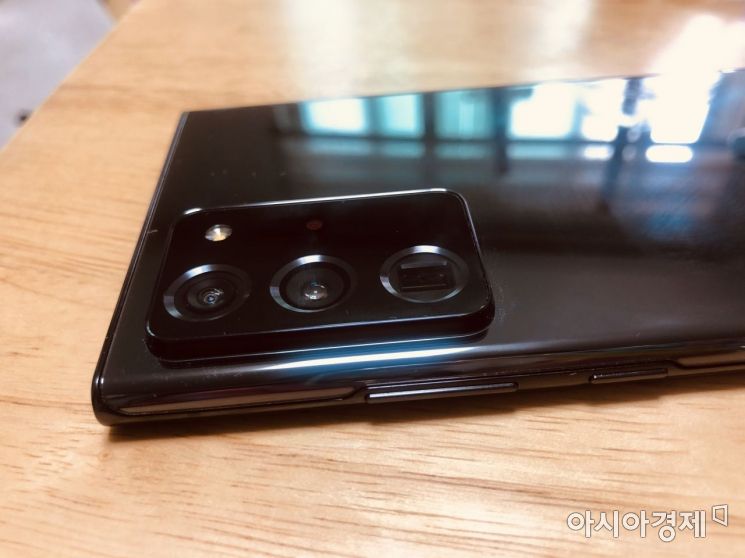 The rear camera of the Galaxy Note20 Ultra noticeably protrudes. Using a case is essential to prevent the wobbling discomfort when placed on a surface while taking notes.
[Asia Economy Reporter Han Jinju] The first thing that catches your eye when you see the Galaxy Note20 Ultra is the camera. The "camera bump" is more pronounced than on the Galaxy S20 and Note10. Because of this, when you place the smartphone on a table, it often wobbles. Samsung Electronics explains that they emphasized the excellent camera performance as a design element. The back is coated with glass material, giving it a smooth touch. The bronze color has a matte finish, but the black version is glossy, so fingerprints on the glass need to be wiped off. The Galaxy Note20 Ultra features Gorilla Glass that is twice as durable against scratches and drop damage compared to its predecessor.
In the Ultra model, the S Pen response speed has been improved, and the screen refresh rate has been enhanced to 120Hz, making screen transitions faster and better synchronized with the S Pen. The action recognition range has also increased. It can recognize shapes like brackets or zigzags, enabling many functions to be executed via air actions such as back, home, recent apps, and capture. When taking notes in Samsung Notes, if you record a voice memo simultaneously, you can check the recorded voice at the corresponding part of the notes. This is useful for reviewing important content during classes or meetings.
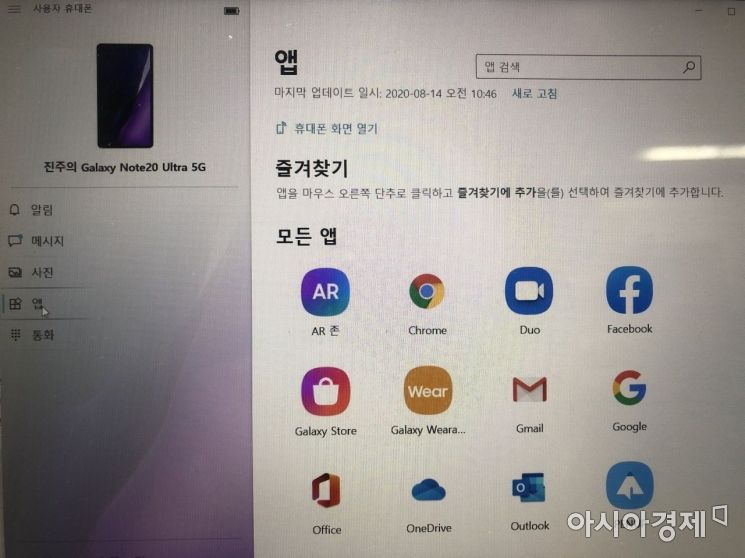 By using the Windows connection feature of the Galaxy Note20, you can run mobile apps on your PC in the same way as remote control without connecting via a USB cable.
Compatibility with Windows also deserves high marks. Once you connect the Galaxy Note20 to a Windows 10 PC, you can check photos, text messages, and notifications on the PC. Sharing to the PC is convenient without a USB cable or sending files via mobile messenger. You can also run apps stored on the smartphone on the PC. Just go to the phone settings, access 'Your Phone Companion,' and grant permission to the features. This allows you to run the same apps on both mobile and PC. It was possible to run desired apps as if remotely controlling the smartphone from the PC.
You can check recorded voice files and save them on the PC, or save notes made in the Samsung Notes app directly to the PC. As long as the smartphone and PC are connected, the hassle of switching back and forth between devices disappears. The Galaxy Note20 is equipped with Ultra Wideband (UWB) technology, adding the 'Nearby Share' feature for file sharing between Android devices. You can share photos and videos via Bluetooth, Wi-Fi, or NFC, and this has a wider application range than 'Quick Share,' which is supported only on the latest Galaxy flagship models.


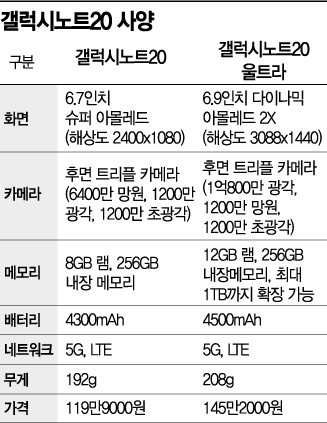
The Galaxy Note20 Ultra’s camera is equipped with a maximum 108-megapixel camera and supports 50x zoom. Although the 100x zoom feature from the Galaxy S20 Ultra is missing, considering that higher zoom levels increase shaking and make shooting difficult, 50x zoom was sufficient. Thanks to the large image sensor size, it was satisfying to take clear photos even at night with low light. A new feature was added that allows you to capture sound only from the desired direction when recording videos, which is useful for users who enjoy vlogging.
© The Asia Business Daily(www.asiae.co.kr). All rights reserved.